
Transact eAccounts
Transact Campus Inc.Education
4.5349.00 Reviews
- Version
- 2026.5.0 (2026071302)
- Installs
- 500.00K
- Age Rating
- Everyone
Screenshots
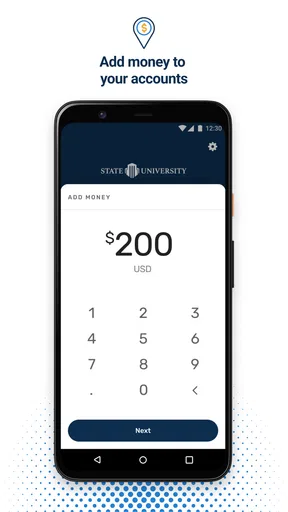
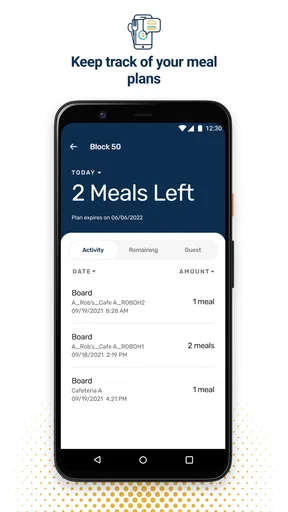
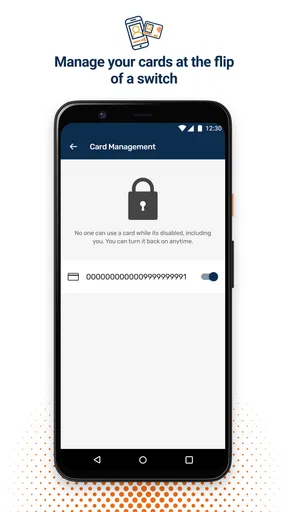
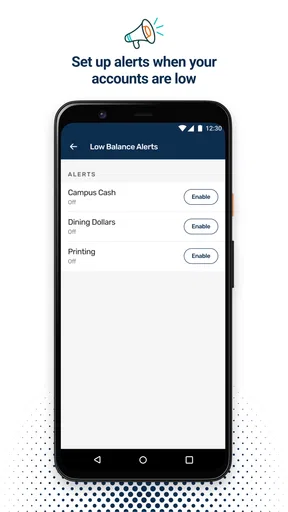
Our Review of Transact eAccounts
 Analysis by Appyee
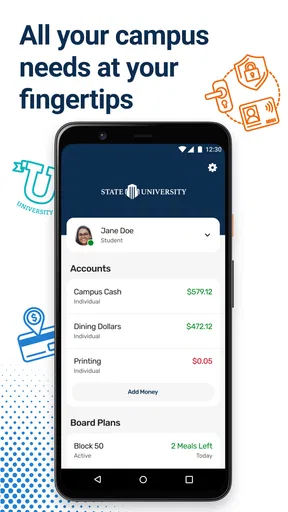
Campus life becomes noticeably easier when the tools you need for everyday access and payments are in one place. I found that Transact eAccounts is built around that simple idea: it is an education app from Transact Campus Inc. that can help students use a phone instead of carrying a physical campus card for supported tasks. It is free, rated for Everyone, and available on devices running at least iOS or Android 10.
That description sounds straightforward, but the useful question is how well it fits real routines. In my experience, the app makes the most sense when your school already uses the Transact system and you regularly need dorm access, account management, or campus payments. It is less compelling as a general wallet because its value depends heavily on the services your institution has connected to it.
How the everyday workflow feels
The normal starting point is setting up the app with your campus account and checking which functions your institution has enabled. The experience is not really about browsing content or learning a complicated interface. It is about reaching a small set of practical campus actions quickly, then returning to them when you need them.
For a student, that might mean leaving a residence hall, paying for something on campus, or checking an account without searching for a card in a backpack. The phone becomes the convenient place to begin those tasks. I like that the app is focused on campus life rather than trying to imitate a full banking app, because the relevant actions are easier to identify.
A realistic example is a busy morning between classes. You may realize that your physical card is still in yesterday’s jacket, but your phone is already in your hand. If your school supports the required access or payment function, opening eAccounts can be quicker than going back to your room. That convenience is the strongest reason to use it: not because it replaces every campus process, but because it removes small points of friction that happen repeatedly.
The first setup deserves more attention than a rushed user might give it. I would install the app before moving into a residence hall or before the first week of classes, sign in calmly, and check the account and access areas while I still have time to resolve any campus-specific issue. Discovering a setup problem at a locked entrance is a poor first test.
The app’s store summary highlights dorm access, account management, and campus payments without a card. Those functions are related, but they are not identical. A student might have access enabled while a particular payment account still needs attention, or may see account information without every possible campus service appearing. I would treat the first session as a verification step rather than assuming that every feature is automatically ready.
One useful habit is to keep the app in the same place on your phone as other daily essentials. That sounds minor, but a campus utility is most helpful when it can be reached under pressure. I also recommend checking it before leaving for an important appointment, meal, or late class rather than waiting until you are standing at a reader or door.
There is also a practical backup question. Even when a phone-based campus tool works well, I would not immediately discard every alternative. A dead battery, a damaged phone, or an account problem can turn a convenient digital credential into an obstacle. The best routine is to know your school’s fallback process and keep any physical card or other approved option available when the situation calls for it.
What to check during setup
The most important setting is not a visual preference; it is whether the app is connected to the correct campus account. Students who attend institutions with similar names, multiple campuses, or more than one account should slow down here. A wrong account can make the app appear incomplete even when the problem is simply the sign-in choice.
I would also review the phone’s basic security and notification behavior. A campus access app should be used on a device protected with a passcode or another screen lock, especially if it displays account details or can participate in access and payment routines. Notifications can be useful for timely account information, but I prefer to keep them purposeful so the app does not become background noise.
Another worthwhile check is whether the app is current. The version listed for Transact eAccounts is 2026.5.0 (2026071302), so users should pay attention to updates offered through their device’s official app store. Updating is not a guarantee that every campus issue disappears, but it reduces the chance of running an old client while the institution expects a newer one.
Device compatibility matters too. The minimum operating-system requirement is version 10, which covers many current phones but may exclude older hardware. If you are preparing for a new term, checking the operating system before relying on mobile access is sensible. This is especially important for students using an aging phone that already struggles with updates or battery life.
I would not spend time hunting for elaborate customization. The useful configuration is functional: confirm the account, understand which campus services appear, make sure the phone is secure, and keep the app updated. That is a better use of time than trying to make a campus utility look perfect.
Shortcuts that make repeat tasks easier
Experienced use comes from reducing repeated decisions. After setup, I would learn the quickest route to the action I use most often. If payments are the main reason I open the app, I would avoid wandering through unrelated account screens. If residence access is the priority, I would practice reaching that area before I need it.
This is not a claim that the app offers an unlisted custom shortcut or special automation. The shortcut is a personal habit: place the app where it is easy to find, recognize the relevant screen, and open it before the last second. That approach is simple, but it matters when a line is forming or a door is closing.
Students can also separate routine checking from urgent checking. Account information is better reviewed at a quiet moment, while access should be tested before a known need. For example, I would check the app during the afternoon if I planned to return to a residence hall late at night. That gives me time to notice a sign-in issue instead of discovering it after campus offices have closed.
For payments, I would think of the app as part of a larger campus spending routine rather than as a replacement for every payment method. Before buying something important, confirm that the intended campus account is available and that you understand which balance or account the transaction will use. This small pause can prevent confusion when several campus-related funds or account areas are visible.
There is a useful trade-off here. Keeping the app ready can save time, but leaving a phone unlocked or sharing access casually creates unnecessary risk. Convenience should not mean ignoring device security. I would rather spend a few seconds unlocking the phone properly than treat a digital campus credential like an unprotected note.
Another practical pattern is to use the app alongside, not instead of, the school’s other official communication channels. eAccounts can be the place for supported account and access actions, while a campus website, email, or office may still explain broader policies and exceptions. When something does not behave as expected, checking the institution’s instructions is usually more useful than repeatedly tapping the same screen.
Where the app is strongest, and where it is not
The clearest strength is concentration. A student can have dorm access, account-related tools, and campus payment functions associated with one education-focused app instead of juggling a card and several unrelated services. That is particularly helpful for students who spend most of their day moving between residence, classrooms, dining areas, and other campus locations.
It is also more focused than a general mobile wallet. A wallet app may be excellent for bank cards, tickets, or broad contactless payments, but it does not necessarily understand campus accounts or residence access. Transact eAccounts is the better fit when the institution’s own campus infrastructure is the thing you need to reach.
On the other hand, a general wallet may be preferable for ordinary off-campus purchases or for someone who wants all personal payment cards in one familiar place. eAccounts should not be judged as a universal financial tool. Its purpose is narrower, and that narrowness is both its advantage and its limitation.
The same distinction applies to physical cards. A card is tangible, familiar, and independent of phone battery life. The app is more convenient when the phone is already available and the campus supports the relevant digital function. I would choose the app for daily convenience while keeping a sensible backup for situations where a phone cannot be used.
Another limitation is institutional dependence. Two students can install the same app and see different practical value because their schools may enable different services. That is not necessarily a flaw in the software, but it does mean the app cannot promise the same experience everywhere. Before treating it as essential, I would confirm that my campus actually supports the functions I need.
Students who rarely use dorm access, campus accounts, or campus payments may find little reason to keep another app installed. Likewise, someone looking for budgeting tools, broad banking features, or a complete digital wallet should choose a product designed for those purposes. eAccounts is strongest when the campus relationship is central, not when the user wants a general-purpose finance app.
Limits that matter in real use
The most important limit is reliability across the entire chain of service. The app may be available, but access or payment still depends on the phone, the account, the campus setup, and the receiving system working together. A user should avoid assuming that installing the app alone guarantees every door or reader will accept the phone.
Battery management becomes part of the workflow. If your phone is nearly empty before an evening event, the digital convenience is less reassuring. I would charge before long days, especially when I expect to use the phone for navigation, messages, and campus access. This is an everyday trade-off that a short store description cannot explain.
Connectivity and sign-in interruptions can also affect confidence. I would test the app in ordinary conditions and learn what screens are available after signing in, rather than waiting for an urgent moment. I would not assume that every action works offline or that every campus system behaves identically. Planning around that uncertainty is wiser than promising yourself the phone will always replace the card.
Privacy is another reason to be deliberate. Account and access tools deserve the same care as other personal services. Use your own device, protect it, and avoid sharing login details. If you replace your phone, treat the change as a small transition project: install the app again, sign in securely, and verify that your campus functions are ready before relying on the new device.
Support expectations should be realistic as well. When the issue concerns a campus account, residence permission, or a particular payment arrangement, the institution may be the right place to ask for help. The app is the interface, but campus administration controls many of the underlying services. Knowing that distinction can save time when troubleshooting.
Who should install it
I would recommend Transact eAccounts to students whose school actively uses it for residence access, campus payments, or account management. It is especially useful for people who move around campus constantly and dislike carrying a physical card, or for anyone who wants a single place to handle several campus-related tasks.
It can also suit parents or guardians only when the institution’s account arrangement and permissions make that appropriate; the main experience is clearly centered on the student’s campus identity. I would not install it on someone else’s phone casually, because access and account information should remain tied to the correct user and device.
The app is free, which removes a financial barrier to trying it. Its audience is broad enough for an Everyone age rating, but that does not make it useful for every phone owner. A person who has no connection to a participating campus has little practical reason to use it.
Its adoption is substantial, with over 500 thousand installs and an average rating of 4.5 from around 3.3 thousand ratings. I see those figures as signs that the basic idea works for many users, not as proof that every campus setup will feel identical. The individual institution remains the deciding factor.
My verdict after building a routine around it
Transact eAccounts succeeds when I treat it as a focused campus utility rather than a magic replacement for every credential and payment method. The best routine is to set it up early, confirm the right account, check the enabled services, protect the phone, and practice the route to the functions I use most. Those habits make the app feel quick without pretending it has features that are not part of its confirmed purpose.
I appreciate the practical combination of dorm access, account management, and campus payments. Compared with carrying only a physical card, the phone can be more convenient; compared with a general wallet, the app is more relevant to campus-specific tasks. The trade-off is that it depends on institutional support, device readiness, and a sensible backup plan.
Transact Campus Inc. has made a tool that can remove several small annoyances from student life, but its value is local and functional rather than universal. If your school supports it, I think it is worth installing and testing before you need it. If you want broad financial management or off-campus payment features, I would choose a different category of app instead.
My final recommendation is straightforward: use it as your campus companion, not as your only safety net. Once the account is configured and the everyday path becomes familiar, the app can save real time. Just keep your phone charged, protect your sign-in, and know what you will do if the digital route is unavailable.
Verdict
Strengths of Transact eAccounts
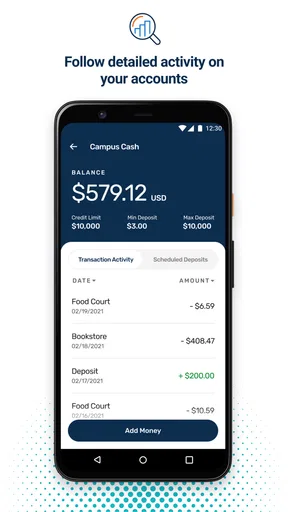
- View balances and recent transactions in one place.
- Make secure transfers between eligible accounts.
- Deposit checks using your phone’s camera.
- Receive alerts for important account activity.
- Convenient access to account details while traveling.
Limitations of Transact eAccounts
- Features depend on your financial institution’s support.
- Mobile check deposits may have limits and review delays.
- Some transfers may incur fees or processing delays.
- Requires a reliable internet connection for most actions.
- The interface may feel basic compared with larger banking apps.
Other Releases by Transact Campus Inc.
View All
Transact Mobile Ordering
Food & Drink4.6
Similar Picks in This Category
View All
Duolingo: Language Lessons
Duolingo4.7

Google Classroom
Google LLC2.8

Unacademy: Learn & Crack Exams
Unacademy3.2

Bible App for Kids
Life.Church4.4

Cake - Learn English & Korean
Cake Corp.4.7

Brainly: AI Homework Helper
Brainly4.5
Frequently Asked Questions
What is Transact eAccounts, and what can I use it for?
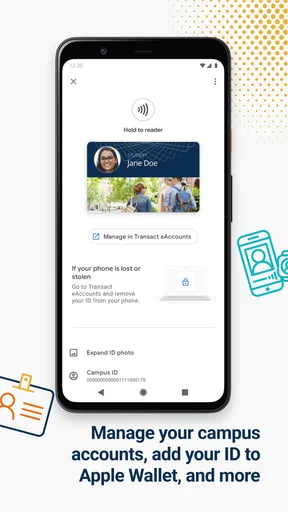
Transact eAccounts is a mobile wallet app designed for participating colleges, universities, and organizations. After signing in with an eligible account, users can typically view their campus ID, access account balances, review recent transactions, and use supported mobile credentials at participating locations. Available features depend on the institution’s Transact setup, so the app may offer different options from one campus to another.
How do I sign in to Transact eAccounts?
To use Transact eAccounts, you generally need an active account connected to a participating school or organization. Open the app, select your institution if prompted, and sign in using the credentials provided by that institution. Some users may also need multifactor authentication or an activation step. If your school is not listed, or your login fails, contact the campus card or IT support office rather than creating an unrelated account.
Can Transact eAccounts replace my physical campus ID card?
In many supported institutions, Transact eAccounts can provide a mobile version of a campus identification credential and may allow access to buildings, dining services, libraries, events, or other locations. However, mobile ID support varies significantly by institution and device. Your school may still require the physical card for certain services or as a backup, so confirm the official policy before leaving your physical ID at home.
Is Transact eAccounts safe to use on a phone?
The app is intended to provide secure access to institution-managed account and credential information, but your own device security remains important. Use a screen lock, keep the operating system and app updated, and avoid sharing your login details. If your phone is lost or stolen, report it promptly to your institution so the mobile credential or account access can be disabled when necessary.
Does Transact eAccounts work on every Android or iPhone device?
Transact eAccounts is available for supported Android and iOS devices, but compatibility can depend on the operating-system version, device security features, and your institution’s configuration. Certain mobile ID functions may require technologies such as NFC, Bluetooth, or device authentication. Before downloading, check the current requirements in Google Play or the App Store and verify that your school officially supports your device and mobile platform.
